
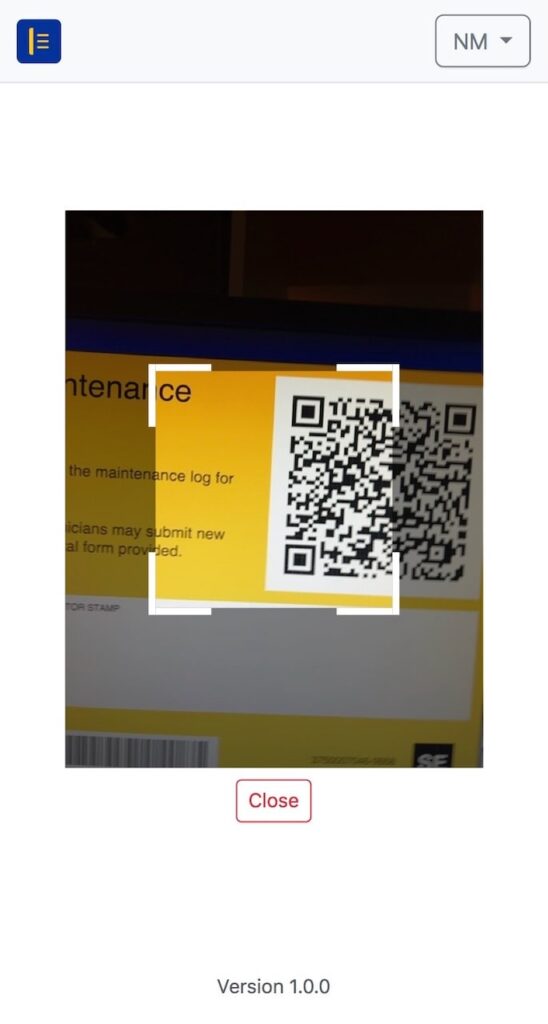
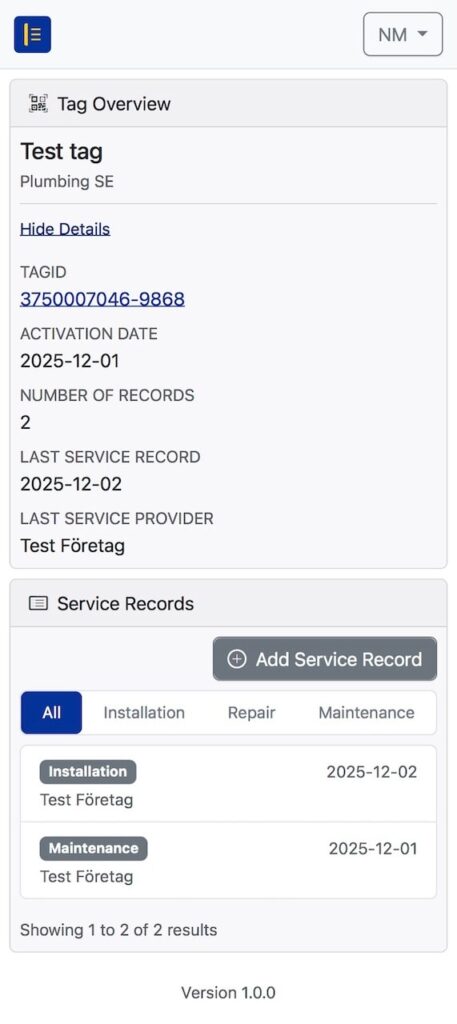
This page explains how to scan an ASL QR tag in the field and how asset information is displayed once the tag is opened. Screenshots may be referenced in this section to illustrate both the scanning view and the asset overview.
Scanning Methods
ASL QR tags can be scanned using two supported methods:
Using the Device’s Native Camera
Most modern smartphones support QR scanning directly through the built-in camera application.
When the tag is scanned, the device opens the unique URL associated with the asset.
Using the Integrated Scanner in ASL
For devices that do not support native scanning—or when already working within the ASL platform—the integrated QR scanner can be accessed from the menu.
The scanner immediately loads the asset view after detection.
Both methods provide identical access to the asset’s digital documentation.
What Happens After Scanning
Once the QR tag is scanned, the user is redirected to the asset overview page.
This page displays essential information, such as:
- Asset reference
- Trade category
- Activation date
- Number of existing service records
- Last recorded maintenance action
- Last service provider
The overview enables technicians and property owners to quickly assess the status of the installation before starting any work.
Access Levels When Viewing a Tag
The information displayed depends on the viewer:
Public Viewer
A non-authenticated user scanning the tag can see only limited, non-sensitive details.
This ensures transparency without exposing restricted information.
Verified Company Users
Technicians and administrators logged in to the platform will see the full maintenance history and have the ability to add new service records, depending on their permissions and trade category.
If a user represents multiple service providers, the system may request confirmation of which organisation they are acting on behalf of before adding records.
Viewing the Asset History
Scrolling below the asset overview presents the chronological list of all service records associated with the tag.
Typical entries include:
- Installations
- Repairs
- Maintenance actions
- Inspections or follow-up notes
Each entry is timestamped and permanently linked to the asset.
Navigating From the Asset Page
From the tag view, users may:
- Add new service records (if authorised)
- View detailed information for each past record
- Access company-specific options depending on permissions
This ensures that all actions are tied directly to the correct asset, maintaining a consistent digital audit trail.